This tutorial will guide you how to run Turbo C++ in Windows 7 or
Windows Vista (and other 64-bit Windows OS) in full screen mode.
Command being 16-bit application doesn’t allow itself to run
in full-screen mode in these Operating System. Whenever tried, one will
be greeted with the image shown.
Same goes with Turbo C++ (tc.exe). It is also command originated and
thus, will not let you work on full screen mode. There are some
unexpected crashes which one may have to endure.
In order to aid, we will use a 32-bit emulator application called as
DosBox.

- If you haven’t grabbed Turbo C++ setup, download it from here.
- Create a new folder in your C: and rename it to ‘turbo’ [or anyone
you feel like]. Reason for doing it will be mentioned as you read.
 Now, run the installed setup file [TC3setup.exe] and give the extraction position as
- Now, download the DosBox setup from here
- Install DosBox in your system.
- Now run DosBox. A command prompt type window will appear. Now note
that there is a difference between the command prompt our system is
equipped with and this version of command prompt. This emulator is
32-bit in contrary to native 16-bit prompt, therefore, allowing you to
run it in full screen mode.
- In this window, we now need to mount the folder via this command:
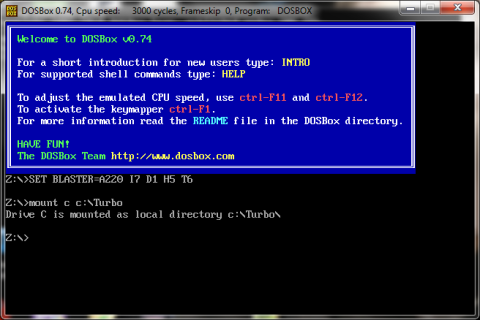 This tells about the reason behind creating another directory while
extracting TC3setup.exe. Mounting works relative to a folder, here
Turbo.
This tells about the reason behind creating another directory while
extracting TC3setup.exe. Mounting works relative to a folder, here
Turbo.
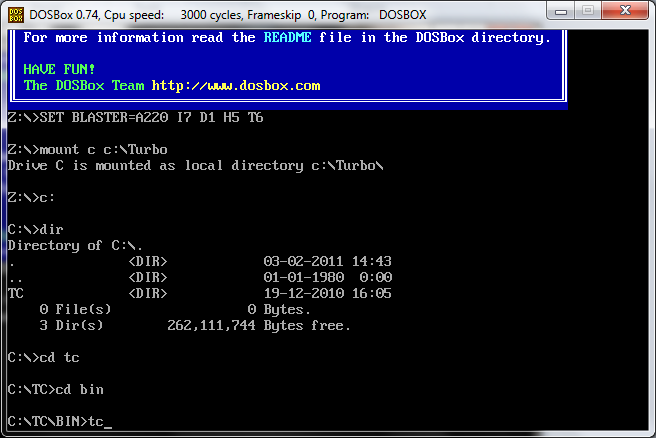
- Work is almost done. Now, type “C:” to mount above mounted drive.
To list the content of this mounted space, type ‘dir’

- Type
>cd tc
>cd bin
to reach within subdirectories for tc.exe
Now type tc and press Enter.
Press Alt + Enter to go in Full Screen Mode.

This task may look all so tedious. But, everything can be automated in a single go.
Once you have successfully managed to run it in full screen mode, you
can easily automate the process by editing configuration file. You can
drop comments below in case of any problem to get through.
To run TC automatically on running
DosBox:
Search for “DosBox” in start menu.
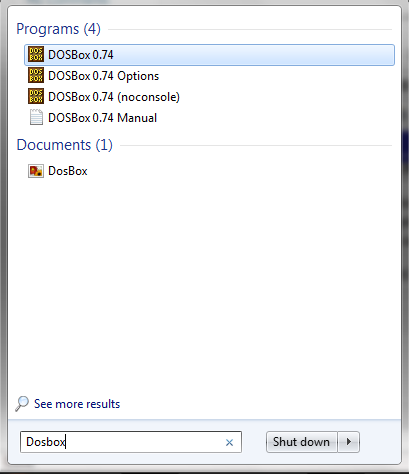
Now
click on DosBox 0.74 Options
A configuration file in Notepad will be opened.
Go till the end of the document and add following lines there:
mount c c:\turbo
c:
cd tc/bin
tc
Save this file and exit from notepad.
Run DosBox again. Voilla! It will take you straight to TuboC++.